Email apps
Set up Outlook (Windows, Mac and mobile)
Add your Mail by vizsu address to classic Outlook, new Outlook, Outlook for Mac or the Outlook mobile app over IMAP.
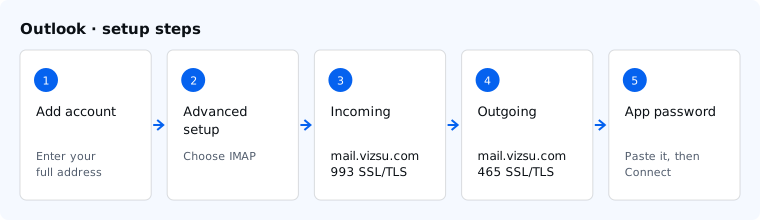
Before you start, create an app password in webmail under Settings → Password & security. Your vizsu account password does not work in email apps.
Classic Outlook for Windows
- File → Add Account, enter your address.
- Choose Advanced options → Let me set up my account manually, then IMAP.
- Incoming:
mail.vizsu.com, port 993, encryption SSL/TLS. Outgoing:mail.vizsu.com, port 465, SSL/TLS (or 587, STARTTLS). - Enter the app password and finish.
New Outlook for Windows and Outlook on Mac
- Settings → Accounts → Add account (Mac: Outlook → Settings → Accounts → +).
- Enter your address. If Outlook offers a provider list, choose IMAP.
- Enter the IMAP and SMTP settings below and the app password.
Outlook app for iPhone and Android
- Settings → Add mail account, enter your address.
- Choose Set up account manually → IMAP, then enter the settings below and the app password.
Settings
| Server | Port | Security | |
|---|---|---|---|
| Incoming (IMAP) | mail.vizsu.com | 993 | SSL/TLS |
| Outgoing (SMTP) | mail.vizsu.com | 465 | SSL/TLS |
| Outgoing, alternative | mail.vizsu.com | 587 | STARTTLS |
Outlook connects over IMAP only. Exchange (EWS/ActiveSync) is not offered, so Outlook won't sync contacts or calendars with Mail by vizsu.
Troubleshooting
- Authentication failed: the username must be your full address and the password an app password. Create a new one if unsure.
- Can't send: make sure the outgoing server requires sign-in with the same username and password. If port 465 is blocked on your network, use 587 with STARTTLS.
- More fixes: Troubleshoot email apps.