Users & admin
Users, aliases and forwarding
Create users, add aliases, forward mail, set auto-replies and the organization signature in the admin dashboard.
Owners and admins manage users in the admin dashboard at mail.vizsu.com/admin.
Create a user
- Open Users and add a user with an address on a verified domain.
- Optionally enter a recovery email. The person then gets an invitation there to set their vizsu password.
- Without a recovery email, the dashboard shows a one-time setup link. Share it with the person; you can regenerate it from the user page.
- Send them Sign in to Mail by vizsu and Email app settings.
Welcome email
New users get a welcome message in their new mailbox: how to sign in, email app settings and links to these help pages. If they have a recovery email, a short notice goes there too. The password is never included. Turn it off per user with the Send a welcome email box when creating them, or for everyone (and add a note of your own) under Settings → Welcome email.
If someone already has an unverified vizsu account with that address, the mailbox isn't given to that account until the address is verified. Deleting a user removes their vizsu account from your organization; a deleted user can be restored for a limited time.
The user page
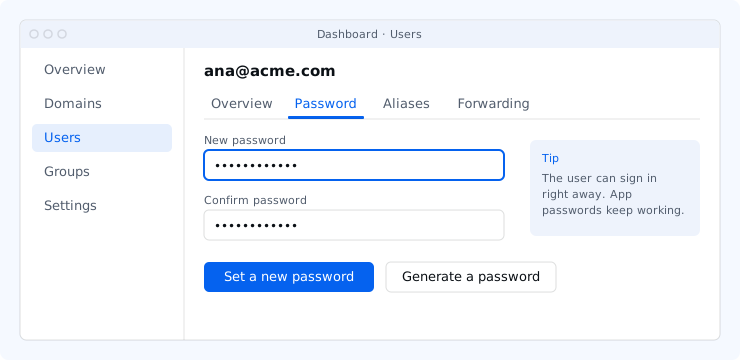
Each user has tabs: Overview (storage, connection settings, recovery email, mailbox type), Aliases, Forwarding, Auto-reply, Delegation, Password, Security (app passwords), Import/Export and Danger zone. Some tabs appear only if the feature is on for your account.
Aliases
An alias is an extra address that delivers into a mailbox, e.g. sales@ into jane@. Aliases don't count toward your plan.
Forwarding
Forward a mailbox's incoming mail to other addresses, choosing whether to keep a copy. A mailbox can't forward to itself. Forwarding outside your domains counts toward the sending limit.
Auto-reply and organization signature
Set an out-of-office reply on the Auto-reply tab. Set an organization-wide signature in Settings → Signature.