Email apps
Set up mail on iPhone or iPad
Add your Mail by vizsu address to the Mail app on iPhone or iPad with IMAP and an app password.
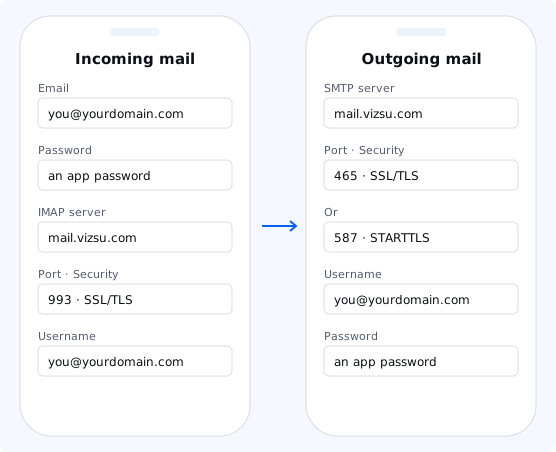
Before you start, create an app password in webmail under Settings → Password & security. Your vizsu account password does not work in email apps.
Steps
- Open Settings → Apps → Mail → Mail Accounts → Add Account (on older iOS: Settings → Mail → Accounts → Add Account).
- Tap Other → Add Mail Account.
- Enter your name, full email address, the app password and a description, then tap Next.
- Choose IMAP. Under both Incoming and Outgoing Mail Server, enter Host Name
mail.vizsu.com, your full address as User Name, and the app password. - Tap Next, then Save.
Settings
| Server | Port | Security | |
|---|---|---|---|
| Incoming (IMAP) | mail.vizsu.com | 993 | SSL/TLS |
| Outgoing (SMTP) | mail.vizsu.com | 465 | SSL/TLS |
| Outgoing, alternative | mail.vizsu.com | 587 | STARTTLS |
To check ports: open the account, tap Account → Advanced (incoming, 993 with SSL) and Outgoing Mail Server → Primary Server (465 with SSL).
Troubleshooting
- Authentication failed: the username must be your full address and the password an app password. Create a new one if unsure.
- Can't send: make sure the outgoing server requires sign-in with the same username and password. If port 465 is blocked on your network, use 587 with STARTTLS.
- More fixes: Troubleshoot email apps.