Email apps
App passwords
Create and revoke app passwords for Outlook, Apple Mail, Thunderbird, phones and scripts that connect over IMAP and SMTP.
An app password is a random password for one email app. You sign in to the app with your email address and the app password. Each app gets its own, so you can revoke one (for example a lost phone) without affecting the others.
Why app passwords
- Your vizsu account password, which also protects webmail, never has to be typed into an email app.
- Email apps can't do two-step verification; an app password is long and random instead.
- IMAP and SMTP don't accept your vizsu account password.
Create an app password
- Sign in to webmail at https://mail.vizsu.com.
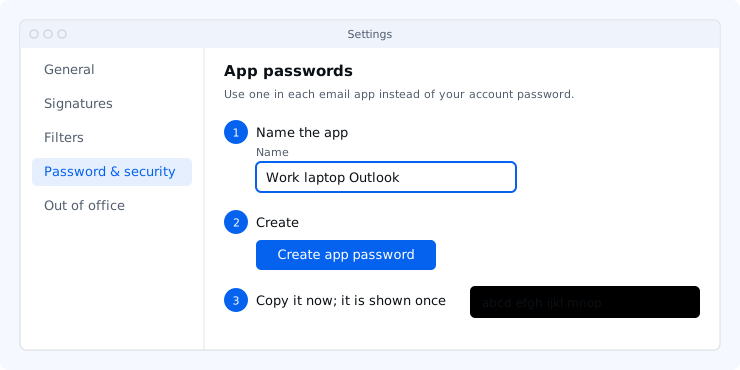
- Open Settings → Password & security.
- Under App passwords, enter a name you'll recognise, like Work laptop Outlook (up to 100 characters).
- Choose Create app password. You may be asked to confirm it's you.
- Copy the password and paste it into your app. It is shown only once.
Admins can also create app passwords for a user in the dashboard: Users → the user → Security.
Revoke an app password
- Open Settings → Password & security.
- Choose Revoke next to the app password and confirm. Apps using it stop signing in right away.
Troubleshooting
- No App passwords section: for shared or delegated mailboxes, app passwords belong to the mailbox owner.
- Lost the password: it can't be shown again. Revoke it and create a new one.