Email apps
Set up Apple Mail on a Mac
Add your Mail by vizsu address to Apple Mail on macOS with IMAP and an app password.
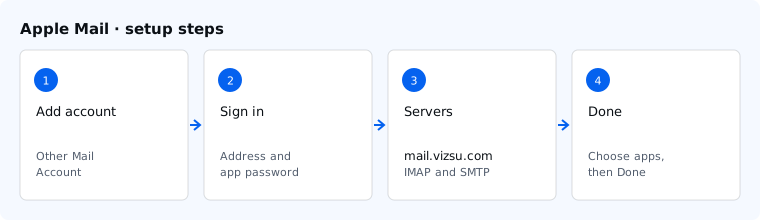
Before you start, create an app password in webmail under Settings → Password & security. Your vizsu account password does not work in email apps.
Steps
- Open Mail and choose Mail → Settings → Accounts, then +. (Or Mail → Add Account.)
- Choose Other Mail Account and continue.
- Enter your name, your full email address and the app password, then Sign In.
- If Mail can't find the settings, choose IMAP as the account type and enter
mail.vizsu.comas both incoming and outgoing server, with your full address as the username. - Select the apps to use with the account (Mail), then Done.
Settings
| Server | Port | Security | |
|---|---|---|---|
| Incoming (IMAP) | mail.vizsu.com | 993 | SSL/TLS |
| Outgoing (SMTP) | mail.vizsu.com | 465 | SSL/TLS |
| Outgoing, alternative | mail.vizsu.com | 587 | STARTTLS |
To check ports later: Mail → Settings → Accounts → your account → Server Settings, untick Automatically manage connection settings and set IMAP to 993 and SMTP to 465 with TLS/SSL on.
Troubleshooting
- Authentication failed: the username must be your full address and the password an app password. Create a new one if unsure.
- Can't send: make sure the outgoing server requires sign-in with the same username and password. If port 465 is blocked on your network, use 587 with STARTTLS.
- More fixes: Troubleshoot email apps.